9 min readInfra
running my own git server with forgejo
Forgejo 17 in Docker on a home server, reached over Tailscale: one compose file, git over SSH on port 2222, pull mirrors of GitHub repos, and backups that don't rely on forgejo dump.
This post is about running Forgejo, a self-hosted git forge, on a home server. I wanted my repositories on a machine I control, with a web UI, and with copies of my GitHub repositories that keep themselves up to date.
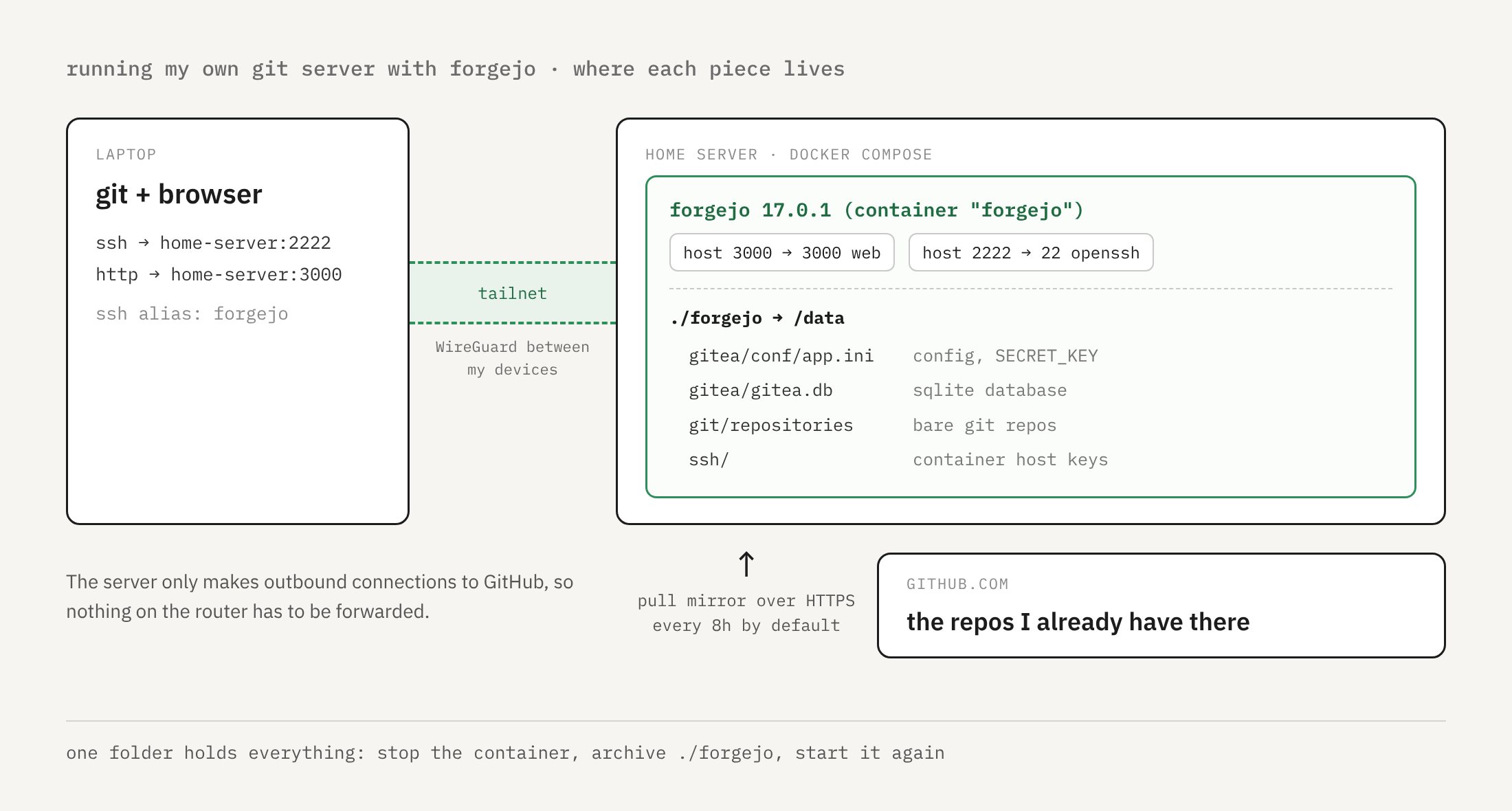
The setup is one Docker Compose file. Forgejo stores everything in one folder, uses SQLite, and is only reachable over Tailscale, so nothing is forwarded on the router. The guide covers the compose file, the first-run page, SSH access on port 2222, mirroring from GitHub, backups, upgrades, and what this setup doesn't do.
why forgejo, and which version
Forgejo is a community fork of Gitea. It gives you repositories, issues, pull requests, a package registry and a CI system called Forgejo Actions, in a single Go binary or container.
There are two release lines right now, listed on the releases page:
- 17.0.1 is the current stable release, from 26 October 2026. It is supported until 28 January 2027.
- 15.0.11 is the long term support release. It is supported until 15 July 2027.
Forgejo 17.0 came out on 15 October 2026. Major versions ship every three months, and a stable version gets about three months of fixes. I'm using 17.0.1 in this guide. If you'd rather upgrade across major versions less often, the same steps work with 15.0.11.
how it works
The official image is codeberg.org/forgejo/forgejo. Inside the container there are two things that matter here:
- The Forgejo web server on port 3000.
- An OpenSSH server on port 22, which handles
git cloneandgit pushover SSH.
All state lives under /data in the container. With the default SQLite setup that means the config file at /data/gitea/conf/app.ini, the database at /data/gitea/gitea.db, the bare repositories under /data/git/repositories, and the container's SSH host keys under /data/ssh. I mount a local folder there, so the whole instance is one directory on the host.
My laptop and the server are both on my tailnet. The laptop reaches Forgejo with the server's MagicDNS name, home-server, the same name I use for regular SSH.
what you need
- A Linux server with Docker and the Docker Compose plugin
- Tailscale on the server and on the device you'll push from
- A GitHub fine-grained token, only if you want to mirror private repositories
step 1: write the compose file
Make a folder for the instance:
mkdir -p ~/forgejo
cd ~/forgejoThen save this as docker-compose.yml. It's the example from the Forgejo Docker installation docs, with the version pinned and a few settings added through environment variables:
networks:
  forgejo:
    external: false

services:
  server:
    image: codeberg.org/forgejo/forgejo:17.0.1
    container_name: forgejo
    environment:
      - USER_UID=1000
      - USER_GID=1000
      - FORGEJO__server__DOMAIN=home-server
      - FORGEJO__server__SSH_DOMAIN=home-server
      - FORGEJO__server__ROOT_URL=http://home-server:3000/
      - FORGEJO__server__SSH_PORT=2222
      - FORGEJO__service__DISABLE_REGISTRATION=true
    restart: always
    networks:
      - forgejo
    volumes:
      - ./forgejo:/data
      - /etc/localtime:/etc/localtime:ro
    ports:
      - "3000:3000"
- "2222:22"Here's what the additions do:
USER_UIDandUSER_GIDare the user that owns the files in./forgejo. Use the output ofid -uandid -gfor your own user. The docs warn that the container may not start if the volume is owned by someone else.- Any variable named
FORGEJO__section__KEYis written intoapp.ini, soFORGEJO__server__SSH_PORT=2222is the same asSSH_PORT = 2222under[server]. DOMAIN,SSH_DOMAINandROOT_URLare the address Forgejo puts in clone URLs and links. Replacehome-serverwith your server's tailnet name.SSH_PORTonly changes the port shown in clone URLs. OpenSSH inside the container still listens on 22, and theportssection maps host port 2222 to it. The docs example uses 222. I picked 2222 because the host's own SSH server already has 22.DISABLE_REGISTRATION=trueturns off the sign-up page. You'll create the only account in step 2.
The image tag is pinned to 17.0.1. The docs also publish a 17 tag that follows the latest 17.x release. I prefer to change the version myself so an upgrade only happens when I run one.
step 2: start it and finish the setup page
Start the container:
docker compose up -d
docker compose psdocker compose ps should list the forgejo container as running. On the first start the container writes app.ini and generates its SSH host keys inside ./forgejo.
Open http://home-server:3000 from a device on your tailnet. You'll get the Initial configuration page.
- Under Database settings, keep SQLite3.
- Under General settings, check that Server domain, SSH server port and Base URL match the compose file.
- Open Optional settings, then Administrator account settings, and create your account. Registration is off, so this is how the first account gets made.
- Click Install Forgejo.
The recommended settings page suggests SQLite for an instance with low to moderate activity. One user pushing to their own repositories is well within that.
step 3: push over ssh
In Forgejo, open Settings, then SSH / GPG keys, and add your public key. Then add an alias to ~/.ssh/config on your laptop, so you don't have to type the port:
Host forgejo
    HostName home-server
    Port 2222
User gitEvery user connects as git. Forgejo works out who you are from the key. Test the connection:
ssh -T forgejoIt should reply with a line that starts with Hi there and your username, and ends by saying Forgejo does not provide shell access. That means the key was accepted.
Create an empty repository in the web UI, then add it as a remote to an existing project and push. your-repo is a placeholder:
git remote add forgejo forgejo:harshal/your-repo.git
git push forgejo mainThe forgejo: prefix is the SSH alias, so git connects to home-server on port 2222 as git.
step 4: mirror repositories from github
A pull mirror is a repository that Forgejo keeps in sync with a remote. I use it to keep a copy of GitHub repositories on the server.
From the repository mirror docs:
- Click the + menu at the top right and pick New migration.
- Choose GitHub and paste the repository URL.
- For a private repository, add an access token. A fine-grained token limited to those repositories with read-only Contents access is enough. Public repositories don't need one.
- Tick This repository will be a mirror.
- Click Migrate repository.
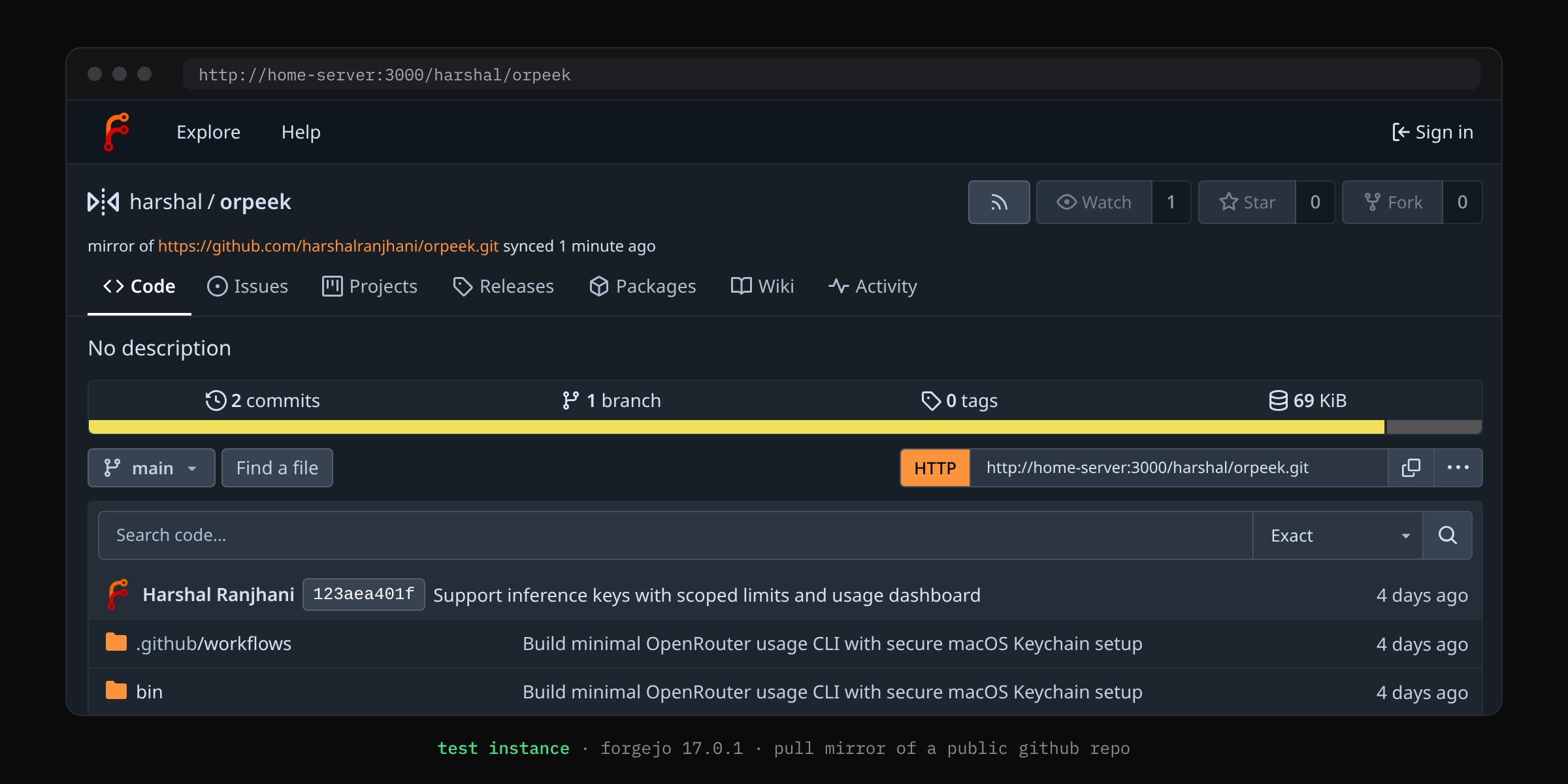
The screenshot above is from a throwaway test instance I ran to check these steps, mirroring one of my public repositories.
A few things about pull mirrors:
- They sync every 8 hours by default. That's
DEFAULT_INTERVALin the[mirror]section of the config cheat sheet, and you can set it per repository, down toMIN_INTERVAL, which defaults to 10 minutes. Synchronize now in the repository settings forces a sync. - They copy git data: branches, tags and commits. When the mirror box is ticked, the GitHub importer only lets you add the wiki. Issues and pull requests stay on GitHub.
- You can't turn an existing repository into a pull mirror. It has to be created as one.
The opposite direction also works. A push mirror sends a Forgejo repository to GitHub after each push or on a timer, which is useful for a project that lives on Forgejo but should still show up on GitHub. It's set up under Settings, Repository, Mirror settings. The docs warn that it force pushes, so anything committed directly on the GitHub side gets overwritten.
step 5: back it up
Forgejo has a forgejo dump command, and plenty of guides use it for backups. Don't. In October 2026 a Forgejo maintainer wrote on the issue tracker that the command was only meant for sending reproductions to maintainers, that restoring from it isn't supported, and that the plan is to deprecate it.
The backup docs recommend shutting Forgejo down while you back it up. With SQLite and the default config, the data folder covers the database, repositories, storage, queues and indexes. In this setup that's the ./forgejo folder, so the backup is: stop, archive, start.
cd ~/forgejo
docker compose stop server
sudo tar --numeric-owner -czf ~/forgejo-backup-$(date +%F).tar.gz docker-compose.yml forgejo
docker compose start serversudo is there because the SSH host keys are owned by root inside the volume. --numeric-owner keeps the user and group IDs as numbers, so ownership comes back correctly on a machine with different user names.
The archive includes app.ini. That file holds SECRET_KEY, which encrypts things like mirror credentials and two-factor settings in the database. The docs say a restore without it breaks those. So the archive is both necessary and sensitive. Keep it encrypted, and keep a copy somewhere other than the server. The docs mention restic as one tool for that.
To restore, stop the container, move the old folder aside, and unpack the archive in its place:
cd ~/forgejo
docker compose down
sudo mv forgejo forgejo.old
sudo tar --numeric-owner -xzf ~/forgejo-backup-YYYY-MM-DD.tar.gz
docker compose up -d
docker compose exec -u git server forgejo doctor check --alldoctor check --all is the check the upgrade guide uses to confirm an instance is healthy. It should finish without reporting problems.
upgrading
For a patch release, take a backup, change the tag in docker-compose.yml, and pull:
docker compose pull
docker compose up -dForgejo runs any database migrations on startup. A major upgrade, like 17 to 18, follows the same steps with two more from the upgrade guide: read the breaking changes in the release notes first, and run docker compose exec -u git server forgejo manager flush-queues before stopping the old version. There's no going back afterwards. Forgejo refuses to start an older version on a database a newer one has migrated, so the backup is the rollback.
optional: forgejo actions
Forgejo Actions is enabled by default and reads workflows from .forgejo/workflows. Forgejo doesn't run the jobs itself. That's the job of Forgejo Runner, a separate program, currently at v13.2.1. The 17.0 release shows job summaries from runners on 13.2 or newer.
A runner executes whatever code a workflow contains, so read the Actions security page before you install one. I've left the runner out of this guide.
what it misses
It only works on the tailnet. Nobody outside my Tailscale network can open the web UI or clone anything. For a private git server that's the point, but it also means no outside contributors and no public project pages.
The web UI is plain HTTP. WireGuard encrypts the traffic between my devices, but the browser still marks the page as not secure. Tailscale Serve can put HTTPS with a tailnet certificate in front of port 3000, and then ROOT_URL should change to match.
Clone URLs carry a port. Sharing the host's port 22 with the container is possible, but it takes extra SSH setup on the host. I kept 2222 because it's simpler.
Mirrors are git only, and they lag. Issues and pull requests stay on GitHub, and a pull mirror can be up to one interval behind.
A backup means a few moments of downtime. The container is stopped while tar runs. For one person that hardly matters, but it's still a gap.
SQLite is hard to leave. The same maintainer comment says moving an instance to another database isn't officially supported yet. If more people might use the instance later, start with PostgreSQL. The Docker docs have a compose example for it.
One server is one disk. If the backups sit on the same machine as Forgejo, they go when that disk goes.
next step
Before pushing anything that only exists on this server, run the restore steps once into a scratch folder or on another machine, sign in, and clone a repository from the restored copy. That tells you the backup works before you need it.