8 min readInfra
exposing homelab services with traefik and cloudflare tunnel, no open ports
How I publish self-hosted apps through one Cloudflare Tunnel that points at Traefik, with no ports open on the server or the router. Includes the compose files, the header fix, and what this setup gives up.
This post shows how I put self-hosted web apps on the internet without opening any ports. A Cloudflare Tunnel carries the traffic into my Docker network, and Traefik decides which container each hostname goes to. My homelab apps reach the internet this way, including the Outline wiki I keep my notes in.
I'll cover how the pieces connect, the three compose files, the tunnel route, the header and caching problems I hit with Outline, and the things this setup does not protect you from.
how it works
Cloudflare Tunnel works through a small daemon, cloudflared, that you run next to your apps. It makes outbound connections to Cloudflare. When someone opens your hostname, Cloudflare sends the request back down one of those connections. Nothing on your side listens for inbound traffic from the internet, so there is no port to forward on the router and nothing to allow in the firewall.
Before I added Traefik, I pointed every tunnel hostname straight at a container. That works, but every route points at a different container and port, and there is no single place to add things like auth or headers. So now the tunnel has one target, http://traefik:80, and Traefik routes by hostname using Docker labels.
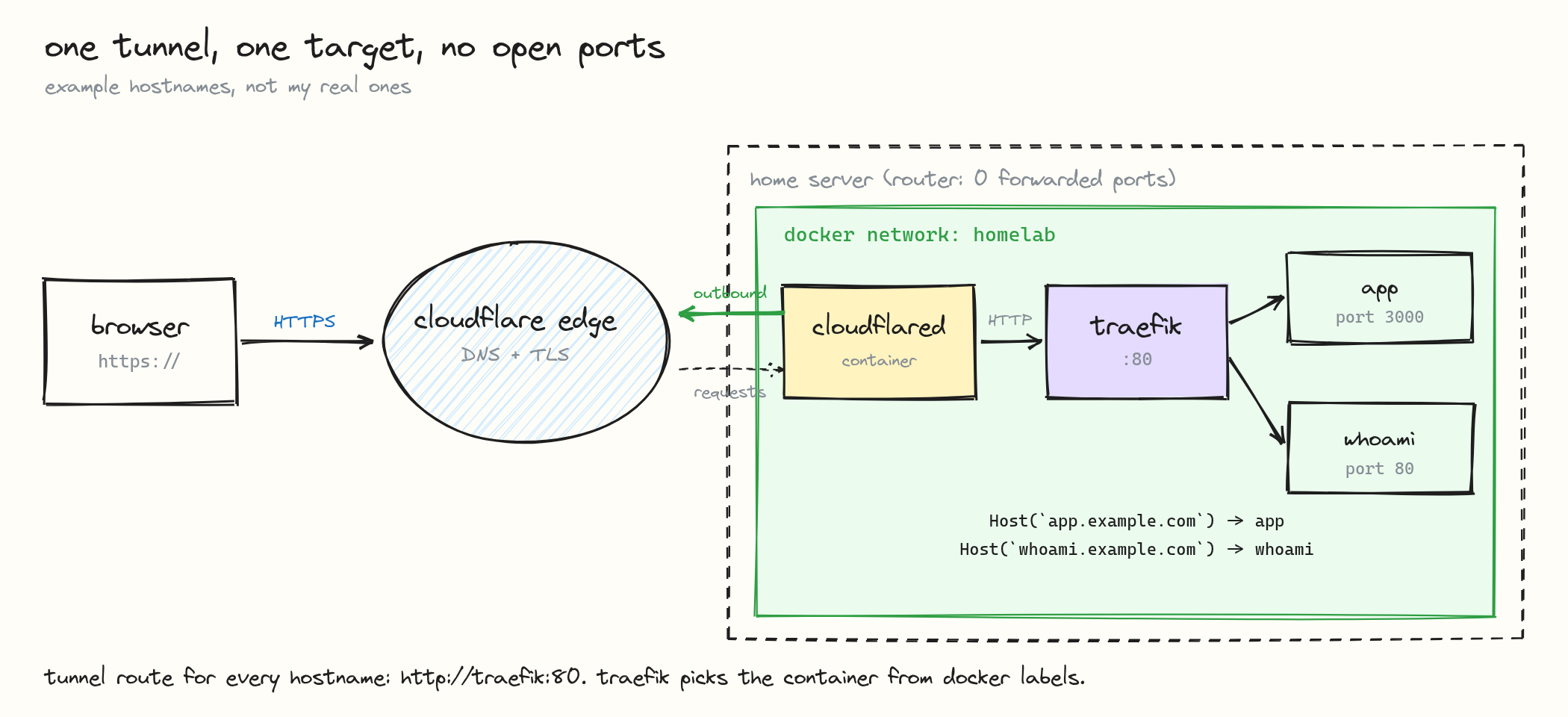
Each part has one job:
- Cloudflare: DNS and TLS for the public hostname.
- cloudflared: the outbound tunnel into the Docker network.
- Traefik: picks a container based on the
Hostheader. - Apps: serve plain HTTP on the internal network and publish no ports.
what you need
- A server running Docker and Docker Compose. Any Linux box works.
- A domain added to Cloudflare. The free plan is enough for this.
- Outbound access to Cloudflare on port
7844. Most home networks allow this already. The firewall page lists whatcloudflaredneeds to reach. - A way to reach the server that does not depend on the tunnel. I use SSH over Tailscale for that.
step 1: create a shared docker network
Every container that Traefik should reach joins one external network. Mine is called homelab:
docker network create homelabTraefik, cloudflared and the apps all attach to it. Containers on the same user-defined network can reach each other by container name, which is why the tunnel can use traefik:80 as its target.
step 2: run traefik without publishing ports
This is the Traefik compose file. It has no ports: section, so it listens on port 80 inside the Docker network and nowhere else:
# traefik/compose.yaml
services:
  traefik:
    image: traefik:v3.7
    container_name: traefik
    command:
      - "--providers.docker=true"
      - "--providers.docker.exposedbydefault=false"
      - "--entrypoints.web.address=:80"
      - "--api.dashboard=true"
      - "--accesslog=true"
      - "--log.level=INFO"
    volumes:
      - /var/run/docker.sock:/var/run/docker.sock:ro
    networks:
      - homelab
    restart: unless-stopped

networks:
  homelab:
external: trueA few notes on the flags:
exposedbydefault=falsemeans Traefik ignores a container until it has thetraefik.enable=truelabel. Without it, every container on the host gets a route.- There is only one entrypoint,
web, on plain HTTP. TLS ends at Cloudflare, so Traefik doesn't need certificates in this setup. - The dashboard is turned on, but no hostname points at it yet. I cover that in "what it misses".
- The Docker socket is how Traefik reads labels. The Docker provider docs explain the security trade-off of mounting it.
v3.7 is the current stable line as I write this. v3.8 is still in release candidates.
Start it:
cd traefik
docker compose up -dstep 3: create the tunnel and run cloudflared
In the Cloudflare dashboard, go to Networking > Tunnels and select Create a tunnel. The dashboard guide walks through it. Pick Docker as the environment. Cloudflare shows a docker run command with a token in it. Copy only the token.
I run cloudflared as a container on the same network, so it can resolve traefik by name:
# cloudflared/compose.yaml
services:
  cloudflared:
    image: cloudflare/cloudflared:2026.11.0
    container_name: cloudflared
    command: tunnel --no-autoupdate run
    environment:
      - TUNNEL_TOKEN=${TUNNEL_TOKEN}
    networks:
      - homelab
    restart: unless-stopped

networks:
  homelab:
external: truePut the token in a .env file next to the compose file, and keep that file out of git:
echo "TUNNEL_TOKEN=paste-your-token-here" > cloudflared/.env
chmod 600 cloudflared/.env
cd cloudflared && docker compose up -dcloudflared reads TUNNEL_TOKEN from the environment, as listed in the run parameters. After a few seconds the tunnel should show as Healthy in the dashboard. If it doesn't, docker logs cloudflared --tail 50 usually says why.
step 4: add the route
Open the tunnel, go to the Routes tab, select Add route, then Published application. Fill it in like this:
Subdomain:    whoami
Domain:       example.com
Path:         (empty)
Service URL: http://traefik:80Every hostname you add gets the same service URL. The tunnel never points at an app container. Cloudflare creates the DNS record for the hostname when you save the route.
For apps where the hostname matters, such as anything that sets cookies, I also set HTTP Host Header to the public hostname in the route's advanced settings. That is the httpHostHeader origin setting. If you later add a wildcard route like *.example.com, keep the explicit routes above it.
step 5: put an app behind traefik
traefik/whoami is a tiny server that prints the request it received, which makes it a good first app. The labels tell Traefik which hostname belongs to it and which port it listens on:
# whoami/compose.yaml
services:
  whoami:
    image: traefik/whoami
    container_name: whoami
    labels:
      - "traefik.enable=true"
      - "traefik.docker.network=homelab"
      - "traefik.http.routers.whoami.rule=Host(`whoami.example.com`)"
      - "traefik.http.routers.whoami.entrypoints=web"
      - "traefik.http.services.whoami.loadbalancer.server.port=80"
    networks:
      - homelab
    restart: unless-stopped

networks:
  homelab:
external: trueWhat each label does:
traefik.enable=trueopts the container in.traefik.docker.network=homelabtells Traefik which network to use when the container is on more than one. My Outline stack, for example, also has a private network for its database and Redis.- The
rulematches the public hostname. loadbalancer.server.portis the port inside the container. For Outline that is3000.
Start it with docker compose up -d. Traefik picks up the labels on its own, so there is nothing to restart.
step 6: check it from the inside first
Before opening the public URL, I test Traefik directly from a throwaway container on the same network. This skips Cloudflare entirely:
docker run --rm --network homelab curlimages/curl:latest \
-s -H "Host: whoami.example.com" http://traefik:80/If that prints the whoami output, Traefik and the app are fine. If the public URL then fails, the problem is in the tunnel route or DNS, not in Docker. Splitting the check this way is how I found the Outline caching bug in the next section.
Then try the public hostname from your laptop:
curl -s https://whoami.example.com/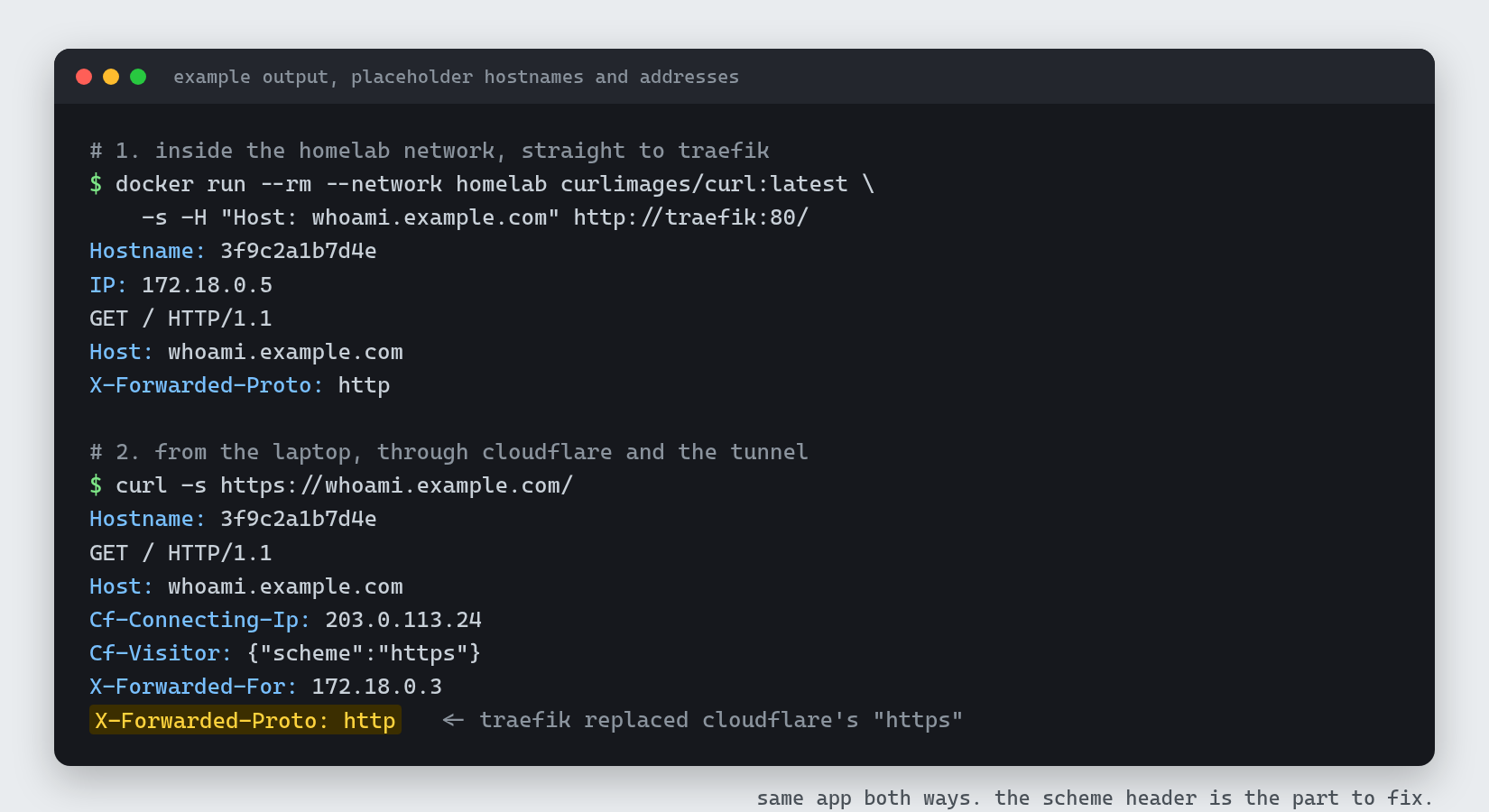
Look at X-Forwarded-Proto in the public response.
two things that broke outline
The browser talks HTTPS to Cloudflare, but Traefik receives plain HTTP from cloudflared. Cloudflare sends X-Forwarded-Proto: https along with the request, but Traefik only keeps X-Forwarded-* headers from sources it trusts. By default it trusts nobody, so it replaces the header and the app is told the request came in over HTTP.
Many apps don't care. Apps that build absolute URLs or set secure cookies can. For Outline, I set the headers explicitly with a headers middleware on that one router:
labels:
  - "traefik.http.middlewares.outline-forwarded.headers.customrequestheaders.X-Forwarded-Proto=https"
  - "traefik.http.middlewares.outline-forwarded.headers.customrequestheaders.X-Forwarded-Port=443"
- "traefik.http.routers.outline-docs.middlewares=outline-forwarded"The other option is to trust cloudflared for the whole entrypoint with forwardedHeaders.trustedIPs, set to the subnet of your homelab network. That keeps the real client IP in X-Forwarded-For as well. Don't use forwardedHeaders.insecure. The Traefik docs say it is for testing only.
The bug I actually spent time on was caching. Every save in Outline failed with "CSRF token invalid". My zone has a cache rule that caches everything, including HTML, so Cloudflare was serving a cached copy of the Outline page without the fresh Set-Cookie: csrfToken=... header. The internal curl from step 6 returned the cookie and the public one didn't, which pointed at Cloudflare. A cache rule that bypasses cache for that hostname, followed by a purge, fixed it. If your zone caches HTML, add a bypass rule for every app that has a login, and make sure no broader cache-everything rule overrides it.
step 7: make sure nothing is listening
The whole point is that no port is open, so check it. On the host:
sudo ss -tlnpYou should not see anything on 0.0.0.0:80 or 0.0.0.0:443. If you do, some compose file still has a ports: section. Docker writes its own firewall rules for published ports, and the Docker docs explain that those rules apply before UFW's. A deny in UFW will not close a port that Docker published.
I keep UFW enabled on the server anyway. A default that denies incoming traffic and only allows the Tailscale interface looks like this:
sudo ufw default deny incoming
sudo ufw default allow outgoing
sudo ufw allow in on tailscale0
sudo ufw enableRun the allow in on tailscale0 line before enable if you are connected over Tailscale, or you will lock yourself out.
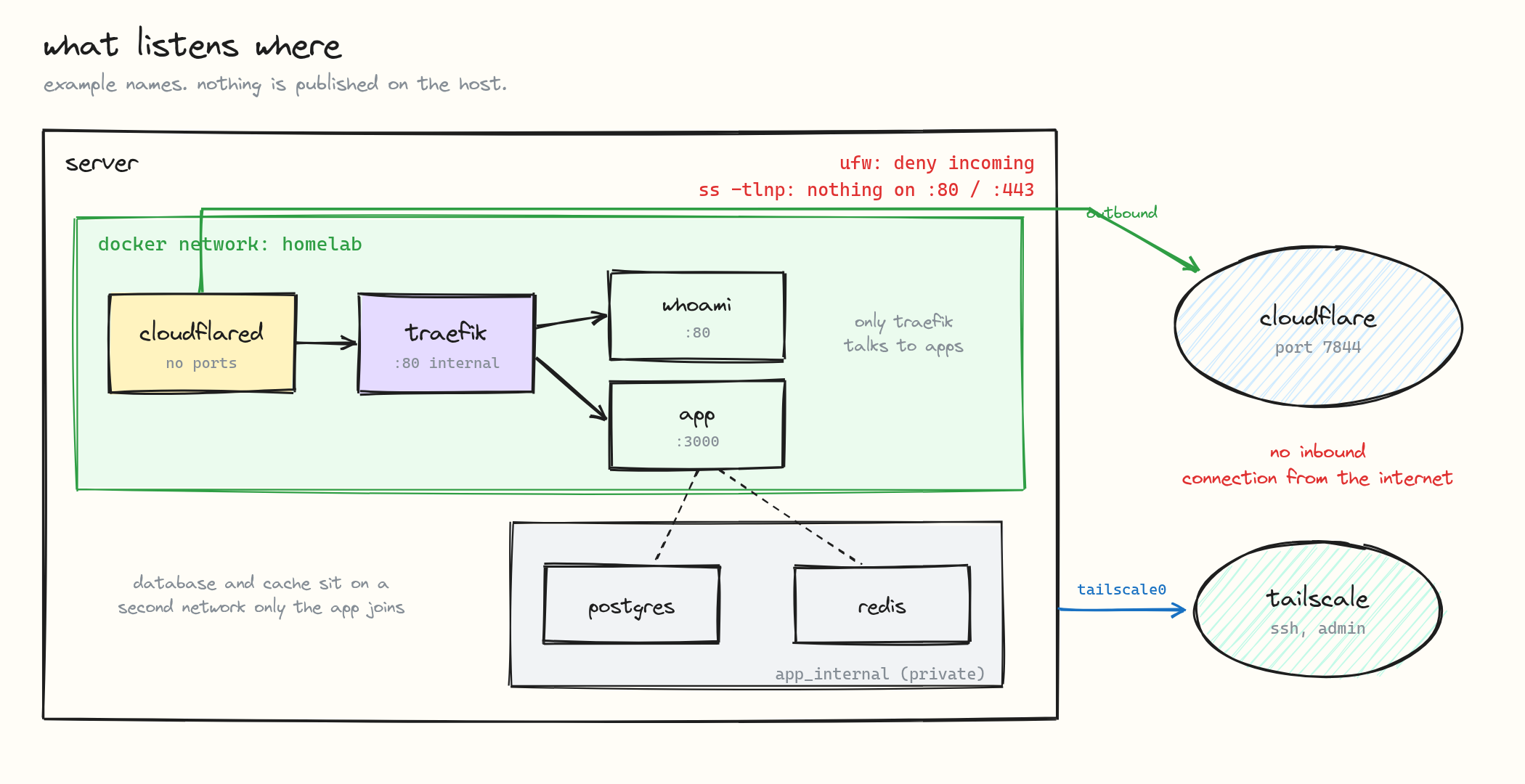
what it misses
The app is still public. No open ports means nobody can reach your server directly. It does not mean nobody can reach your app. Anyone with the hostname gets the login page, and any bug in the app is reachable through the tunnel. For admin tools, put Cloudflare Access in front, and turn on Protect with Access in the tunnel so cloudflared checks the Access token too. Cloudflare's docs recommend creating the Access application before adding the route, so the hostname is never open.
Don't publish the Traefik dashboard without Access. It lists every router and backend you run. If you want it, add a router with service=api@internal and put that hostname behind Access.
Cloudflare sees your traffic in plain text. TLS ends at their edge and the request is encrypted again inside the tunnel. For anything you wouldn't hand to a third party, use something private like Tailscale and skip the public hostname.
It depends on Cloudflare and on cloudflared. If either is down, every app is down at once, even though the server is fine. This is another reason to keep a separate way in.
The Docker socket is a big permission. Traefik only needs to read labels, but the :ro flag on a socket mount does not limit what can be done through the Docker API. A socket proxy that only allows read endpoints narrows this.
Large uploads hit Cloudflare's limits. The max upload size is 100 MB on the Free and Pro plans. Outline sends its files to S3-compatible storage, so it isn't affected, but a file sync service behind the tunnel would be.
If you already have a few apps running with published ports, start by moving one of them: add the labels, point a tunnel route at traefik:80, run the internal and public curl checks, then delete its ports: section and confirm with ss -tlnp that nothing is listening.